A sound bar significantly upgrades your computer’s audio by replacing weak monitor speakers with a compact, powerful unit, delivering immersive sound for gaming, music, and calls. Unlike traditional multi-speaker setups, a sound bar offers a sleek, space-saving design and simplified connectivity, making it an ideal solution for a clutter-free desktop.
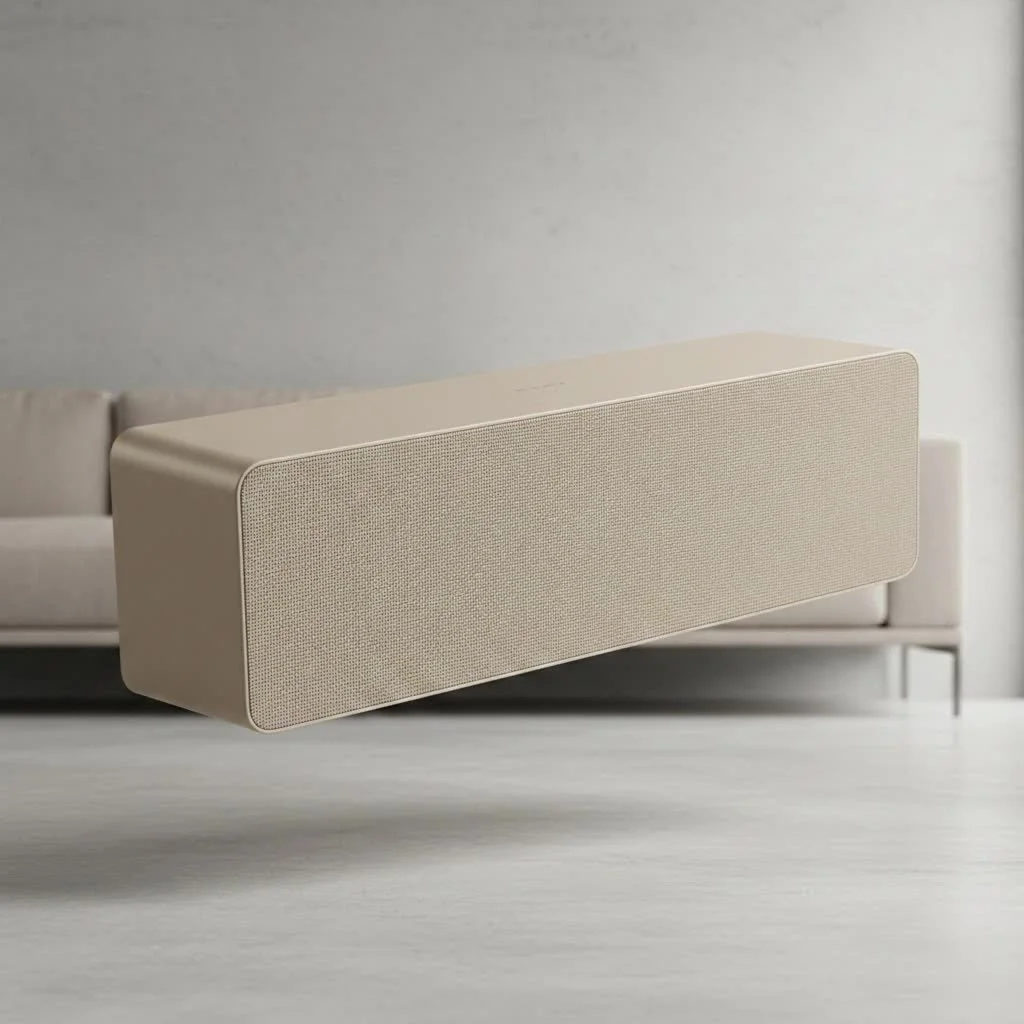
For years, dedicated satellite speakers and a subwoofer were the go-to for serious PC audio. But the game has changed. Modern sound bars, especially those designed for desktop use, pack incredible audio technology into a compact form factor. They deliver clarity, depth, and volume that your default speakers could only dream of, transforming your desk into an entertainment hub. This guide will walk you through everything you need to know about choosing, setting up, and getting the most out of a sound bar for your computer. For complete home theater library on this site.
Why Choose a Sound Bar for Your PC Over Traditional Speakers?
While traditional 2.1 or 5.1 speaker systems have their merits, a PC sound bar offers a unique blend of convenience, performance, and aesthetics that makes it a compelling choice for many users.
The primary advantage is the minimalist design. “A single sound bar declutters your desk significantly,” notes audio expert Caroline Miller. “You replace two or more satellite speakers and all their wiring with a single, elegant unit that sits neatly under your monitor. This is a huge win for anyone who values a clean and organized workspace.”
Here’s a breakdown of the key advantages:
- Space-Saving Design: This is the most obvious benefit. A sound bar integrates multiple speakers into one horizontal enclosure, freeing up valuable desk real estate.
- Ease of Installation: Forget about wrestling with multiple color-coded cables. Most computer sound bars offer plug-and-play setup through a single USB, Bluetooth, or optical connection.
- Aesthetic Appeal: Sound bars contribute to a modern, minimalist desk setup. Their low-profile design complements today’s sleek monitors and peripherals.
- Excellent Performance for the Size: Don’t let the compact size fool you. Many PC sound bars feature advanced audio processing, multiple drivers, and even built-in subwoofers to produce rich, room-filling sound.
Is a TV Sound Bar a Good Choice for a Computer?
You might be wondering if you can just repurpose a larger TV sound bar for your desk. While it’s technically possible, it’s often not ideal. TV sound bars are engineered to fill a large living room and are typically much wider than a standard computer monitor. A dedicated computer sound bar is specifically designed for near-field listening, meaning it’s optimized to sound best when you’re sitting just a few feet away at your desk.
Key Features to Look for in a Computer Sound Bar
Navigating the market can be tricky, but focusing on a few key features will help you find the perfect sound bar for your computer setup.
1. Connectivity Options
|
Our Picks for the Best Sound Bar in 2026
As an Amazon Associate I earn from qualifying purchases.
|
||
| Num | Product | Action |
|---|---|---|
| 1 | Samsung HW-C450 2.1ch Soundbar w/DTS Virtual X, Subwoofer Included, Bass Boost, Adaptive Sound Lite, Game Mode, Bluetooth, Wireless Surround Sound Compatible |

|
| 2 | Sound Bar for Smart TV, 80W Soundbar with Bluetooth/ARC/Opt/AUX Connect, Dynamic Volume Boost, 3 Equalizer Modes, 2 in 1 Detachable Soundbar for TV/PC/Gaming/Projectors |
|
| 3 | Sony S100F 2.0ch Soundbar with Bass Reflex Speaker, Integrated Tweeter and Bluetooth, (HTS100F), easy setup, compact, home office use with clear sound black |
|
| 4 | MZEIBO Sound Bar with Subwoofer,120W Soundbar for Smart TV Surround Sound Home Theater System Bluetooth 5.3 Audio Compatible with ARC, AUX, Optical |
|
| 5 | Sound Bar for Smart TV, 80W Soundbar with Bluetooth/ARC/Opt/AUX Connect, Auto Volume Boost, 3 Equalizer Modes, 2 in 1 Detachable Soundbar for TV/PC/Gaming/Projectors |
|
| 6 | VIZIO V-Series 2.0 Compact Sound Bar with Dolby Audio, DTS:X, Bluetooth V20x-J8 |
|
| 7 | Sound Bar for Smart TV, 80W Soundbar with Bluetooth/ARC/Opt/AUX Connect, Auto Volume Boost, 3 Equalizer Modes, 2 in 1 Detachable Soundbar for TV/PC/Gaming/Projectors |
|
| 8 | ULTIMEA 5.1CH Surround Sound Bar with Subwoofer, Dolby Atmos, VoiceMX, BassMX, APP, 300W Soundbar for Smart TV, Home Theater Surround Sound System for TV, BT 5.4, Poseidon M60 (2025 Model) |
|
| 9 | Sonos Beam Gen 2 - White - Soundbar with Dolby Atmos |
|
| 10 | Sonos Beam Gen 2 - Black - Soundbar with Dolby Atmos |
|
How the sound bar connects to your PC is crucial. Look for a model that matches the ports available on your computer.
- USB: This is the most convenient option for PC users. It often handles both power and audio in a single cable, making for a very clean setup.
- Bluetooth: A great choice for reducing cable clutter. It allows you to wirelessly stream audio not only from your computer but also from your phone or tablet.
- HDMI ARC: While more common on TV sound bars, some high-end PC models include it. It’s a high-quality digital connection that can be useful if you also connect a gaming console to your monitor.
- 3.5mm Aux and Optical: These are reliable wired connections that offer great compatibility with nearly any PC or laptop.
2. Size and Form Factor
Measure the space under your monitor before you buy. The sound bar should fit comfortably without blocking the screen. Most computer sound bars are between 16 and 24 inches wide. Consider the height as well to ensure it slides neatly under your display.
3. Audio Quality and Channels
For a desktop setup, a 2.0 or 2.1 channel sound bar is usually sufficient. A 2.0 channel bar has two main drivers (left and right), while a 2.1 channel system adds a separate or integrated subwoofer for enhanced bass. For gaming and movies, features like Dolby Atmos or DTS:X virtual surround sound can create a more immersive, three-dimensional audio experience, even from a single bar.
4. Power Source
How is the sound bar powered? Most compact models are USB-powered, drawing electricity directly from your computer. Larger, more powerful models will require a separate AC adapter that plugs into a wall outlet. USB-powered options are more convenient, but AC-powered bars can typically deliver higher volume and more powerful bass.
How to Connect and Set Up Your Sound Bar
Once you’ve chosen your sound bar, setting it up is usually straightforward. Here’s a simple step-by-step guide.
- Unbox and Position: Place the sound bar on your desk, centered under your monitor. Ensure it’s stable and on a level surface.
- Connect to Power: If it’s USB-powered, plug it into a free USB port on your computer or a powered USB hub. If it uses an AC adapter, plug it into a nearby power strip.
- Connect the Audio:
- For USB: The single USB cable may already handle audio.
- For Bluetooth: Put the sound bar in pairing mode (check the manual), then find and select it in your computer’s Bluetooth settings.
- For 3.5mm Aux: Connect the cable from the sound bar’s “Aux In” port to your computer’s headphone jack (usually green).
- Select the Output Device: On your computer, go to the sound settings (usually an icon in the taskbar or system tray). Select the sound bar as your default audio output device.
- Test and Tune: Play some music, a video, or a game to test the sound. Adjust the volume on the sound bar and your computer to find a comfortable level.
Pro Tip: For the best stereo imaging, try to form an equilateral triangle between your ears and the left and right ends of the sound bar. This ensures you’re in the “sweet spot” for listening.
Frequently Asked Questions (FAQ)
Can a sound bar be used for PC gaming?
Absolutely. A sound bar is an excellent choice for PC gaming, especially models with low latency and virtual surround sound. It provides an immersive audio experience that can help you pinpoint enemy footsteps and enjoy cinematic game scores, all without the need for a headset.
Is a sound bar better than a headset for gaming?
It depends on your needs. A headset provides the most precise positional audio and isolates you from background noise, which is ideal for competitive multiplayer games. A sound bar, however, offers a more comfortable, open-air experience for single-player games and general entertainment, filling the room with sound without causing ear fatigue.
Do I need a subwoofer with my computer sound bar?
A subwoofer is not essential, but it significantly enhances the experience by producing deep, impactful bass. If you enjoy action movies, bass-heavy music genres like EDM or hip-hop, or immersive gaming, a sound bar with a dedicated or built-in subwoofer is highly recommended.
How do I control the volume on my PC sound bar?
Most PC sound bars have physical volume controls on the unit itself and may also come with a remote. When connected via USB or HDMI, you can typically control the volume directly from your computer’s operating system and keyboard media keys, which is very convenient.
Will a USB-powered sound bar be loud enough?
For most desktop environments, a USB-powered sound bar is perfectly loud enough. It’s designed for near-field listening, providing clear, strong audio for the person sitting at the desk. If you intend to fill a larger room with sound, you should consider a more powerful, AC-powered model.
The Final Word
Upgrading to a sound bar for your computer is one of the most impactful and cost-effective improvements you can make to your desktop setup. It bridges the gap between weak monitor speakers and complex, clutter-inducing surround sound systems. By offering a clean aesthetic, simple installation, and impressive audio performance, a PC sound bar delivers a superior listening experience for work, play, and everything in between. Whether you’re a gamer, a music lover, or just someone who wants to hear your colleagues clearly on a Zoom call, there’s a sound bar out there that’s perfect for your desk.
Frequently Asked Questions
Can a sound bar be used for PC gaming?
Yes, a sound bar is an excellent choice for PC gaming, especially models featuring low latency and virtual surround sound. It provides an immersive audio experience, helping players pinpoint in-game sounds like footsteps without needing a headset.
Is a sound bar better than a headset for gaming?
A headset offers more precise positional audio and noise isolation, which is ideal for competitive multiplayer games. However, a sound bar provides a more comfortable, open-air experience for single-player games and general entertainment, filling the room with sound without causing ear fatigue.
Do I need a subwoofer with my computer sound bar?
A subwoofer is not strictly essential, but it significantly enhances the audio experience by producing deep, impactful bass. For action movies, bass-heavy music genres, or immersive gaming, a sound bar with a dedicated or built-in subwoofer is highly recommended for richer sound.
How do I control the volume on my PC sound bar?
Most PC sound bars include physical volume controls on the unit itself and often come with a remote. When connected via USB or HDMI, you can also conveniently control the volume directly from your computer's operating system and keyboard media keys.
Will a USB-powered sound bar be loud enough?
For most desktop environments, a USB-powered sound bar is perfectly loud enough, designed for near-field listening to provide clear, strong audio for the person at the desk. If you need to fill a larger room with sound, a more powerful AC-powered model would be more suitable.
How to Connect and Set Up Your Computer Sound Bar
Setting up a computer sound bar is usually straightforward, enhancing your desktop audio experience quickly.
Carefully remove the sound bar from its packaging. Place it on your desk, centered directly under your computer monitor. Ensure the surface is stable and level for optimal performance.
If your sound bar is USB-powered, plug the USB cable into a free USB port on your computer or a powered USB hub. For models requiring an AC adapter, plug it into a nearby wall outlet or power strip.
For USB connections, the single cable often handles both power and audio. For Bluetooth, activate pairing mode on the sound bar and connect via your computer's Bluetooth settings. For 3.5mm Aux, connect the cable from the sound bar's 'Aux In' port to your computer's headphone jack.
Navigate to your computer's sound settings, typically found via an icon in the taskbar or system tray. From the list of available devices, select your newly connected sound bar as the default audio output.
Play some audio content, such as music, a video, or a game, to test the sound. Adjust the volume levels on both the sound bar and your computer to achieve a comfortable and clear listening experience.
Get our weekly buyer guide
Practical specs, not advice. Unsubscribe anytime.

I’ve always used a traditional 2.1 speaker setup for my PC, but my desk was getting so cluttered. I decided to try a sound bar after reading about the space-saving design. It’s great for music and general use, and I love how clean my setup looks now. My only minor complaint is that the bass isn’t quite as punchy as my old dedicated subwoofer, but it’s a fair trade-off for the convenience.
I was so tired of the tinny sound from my monitor speakers, especially when gaming. This guide really helped me pick out a sound bar that fit my budget and desk space. The difference is night and day! Explosions actually sound like explosions now, and dialogue is super clear. Definitely recommend upgrading if you’re still using built-in audio.
Finally pulled the trigger on a sound bar for my computer after years of making do with cheap desktop speakers. The clarity and depth are incredible, especially when I’m editing videos. It really does transform my desk into an entertainment hub, just like the article said. Best audio upgrade I’ve made in a long time!
I bought a sound bar in the mid-range price point mentioned, hoping for a big improvement for my work calls and occasional YouTube videos. While it’s better than my laptop speakers, I didn’t find the ‘immersive sound’ quite as dramatic as I expected. It’s decent, but maybe my expectations were too high. Setup was easy though.