Tired of the tinny, lifeless sound coming from your monitor’s built-in speakers? You’re not alone. For years, PC users have settled for subpar audio, thinking the only upgrade path was a clunky set of desktop speakers that eats up valuable desk space. But there’s a sleek, powerful, and increasingly popular solution: using a sound bar for your PC. As an audio expert with over 15 years in the field, I’m here to tell you that this single upgrade can completely transform your desktop experience, whether you’re gaming, watching movies, or just listening to music.
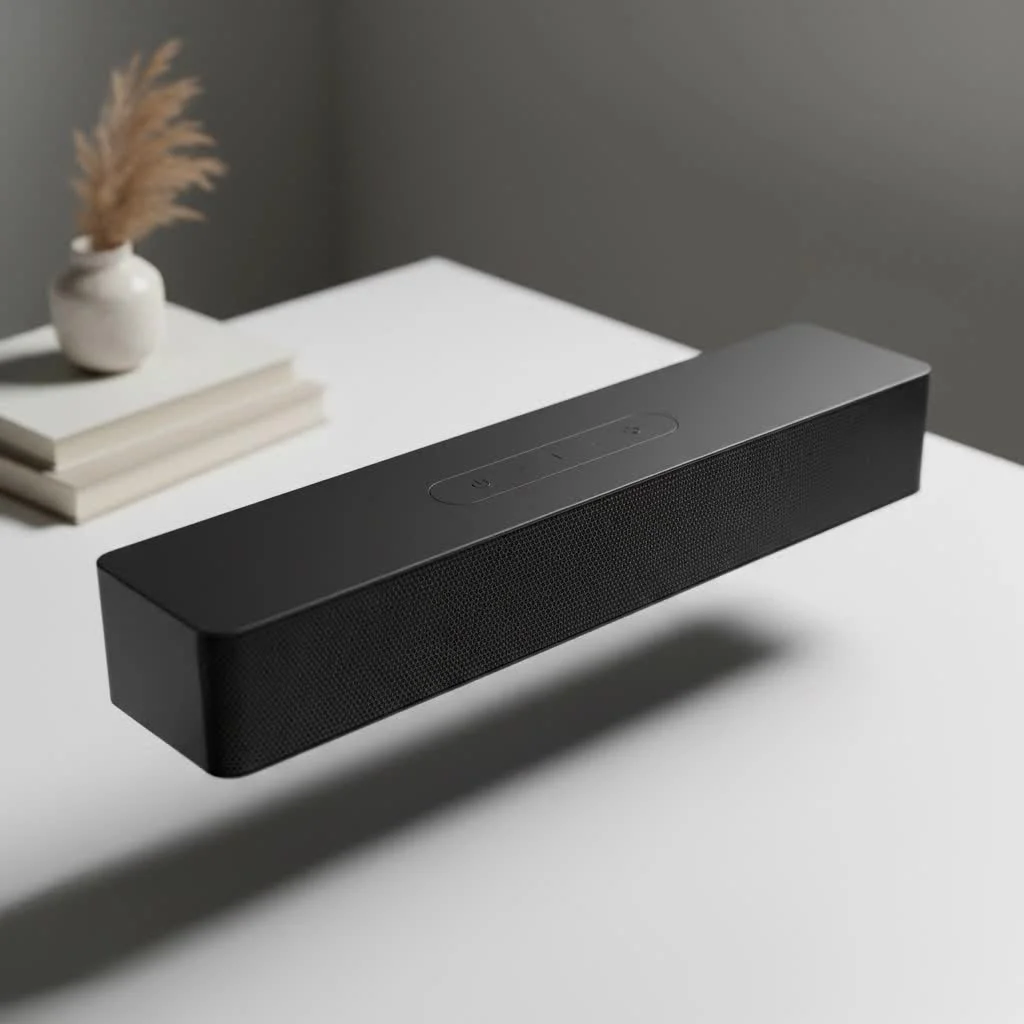
Welcome to Mxwar, your definitive source for audio excellence. Let’s dive into why a PC sound bar isn’t just a novelty—it’s a game-changer for your setup. We’ll cover everything from key features and connectivity to setup, ensuring you have the confidence to pick the perfect audio companion for your computer.
Why Choose a Sound Bar for Your PC?
The first question most people ask is, “Why not just get regular computer speakers?” It’s a valid point, but a sound bar offers a unique blend of benefits that traditional speakers often can’t match, especially in a desktop environment.
- Space-Saving Design: This is the most obvious advantage. A sound bar typically sits neatly under your monitor, occupying horizontal space that’s usually free anyway. This declutters your desk, eliminating the need for two separate satellite speakers and the cable mess that comes with them.
- Simplified Setup: Modern sound bars are designed for plug-and-play simplicity. Many connect with a single USB cable that handles both power and audio, making installation incredibly clean and straightforward.
- Immersive Audio Experience: Many PC sound bars come with advanced audio technologies like virtual surround sound. They use clever audio processing to create a wide, immersive soundstage from a single unit, which is perfect for gaming and movies.
- Aesthetic Cohesion: Let’s face it, looks matter. A sleek sound bar creates a more minimalist and modern look for your battlestation or home office compared to the often-bulky design of traditional PC speakers.
“A great PC sound bar bridges the gap between convenience and performance. It delivers a significant audio upgrade without the spatial compromise of a multi-speaker system, making it the ideal choice for the modern desktop.” – Jonathan Miles, Chief Audio Engineer at Mxwar.
Key Features to Look for in a PC Sound Bar
Not all sound bars are created equal, and one designed for a 75-inch TV might not be the best fit for your 27-inch monitor. Here’s what to focus on when choosing a sound bar for PC use.
Connectivity: How It Plugs In
|
Our Picks for the Best Sound Bar in 2026
As an Amazon Associate I earn from qualifying purchases.
|
||
| Num | Product | Action |
|---|---|---|
| 1 | Sonos Beam Gen 2 - Black - Soundbar with Dolby Atmos |

|
| 2 | Sound Bar for Smart TV, 80W Soundbar with Bluetooth/ARC/Opt/AUX Connect, Dynamic Volume Boost, 3 Equalizer Modes, 2 in 1 Detachable Soundbar for TV/PC/Gaming/Projectors |
|
| 3 | ULTIMEA 5.1CH Surround Sound Bar with Subwoofer, Dolby Atmos, VoiceMX, BassMX, APP, 300W Soundbar for Smart TV, Home Theater Surround Sound System for TV, BT 5.4, Poseidon M60 (2025 Model) |
|
| 4 | VIZIO V-Series 2.0 Compact Sound Bar with Dolby Audio, DTS:X, Bluetooth V20x-J8 |
|
| 5 | Sony S100F 2.0ch Soundbar with Bass Reflex Speaker, Integrated Tweeter and Bluetooth, (HTS100F), easy setup, compact, home office use with clear sound black |
|
| 6 | Samsung HW-C450 2.1ch Soundbar w/DTS Virtual X, Subwoofer Included, Bass Boost, Adaptive Sound Lite, Game Mode, Bluetooth, Wireless Surround Sound Compatible |
|
| 7 | Sound Bar for Smart TV, 80W Soundbar with Bluetooth/ARC/Opt/AUX Connect, Auto Volume Boost, 3 Equalizer Modes, 2 in 1 Detachable Soundbar for TV/PC/Gaming/Projectors |
|
| 8 | Sound Bar for Smart TV, 80W Soundbar with Bluetooth/ARC/Opt/AUX Connect, Auto Volume Boost, 3 Equalizer Modes, 2 in 1 Detachable Soundbar for TV/PC/Gaming/Projectors |
|
| 9 | Sonos Beam Gen 2 - White - Soundbar with Dolby Atmos |
|
| 10 | MZEIBO Sound Bar with Subwoofer,120W Soundbar for Smart TV Surround Sound Home Theater System Bluetooth 5.3 Audio Compatible with ARC, AUX, Optical |
|
This is arguably the most important factor for a PC sound bar. The right connection ensures ease of use and the best possible audio quality.
- USB: This is the gold standard for PC sound bars. A single USB connection can often provide both power and a digital audio signal from your computer, minimizing cable clutter and simplifying setup. It’s a true plug-and-play solution.
- Bluetooth: Perfect for wireless freedom. Bluetooth allows you to stream audio not only from your PC but also from your phone or tablet. It’s a fantastic feature for versatility, but for gaming, a wired connection is usually preferred to avoid any potential audio lag.
- Optical (TOSLINK): An optical port provides a high-quality digital connection. While common on TVs, many PC motherboards and sound cards also have an optical output. It’s a reliable option for pure, interference-free sound.
- 3.5mm AUX: The classic analog input. It’s universally compatible but can sometimes be susceptible to electronic interference from other PC components, potentially causing a slight hum or buzz.
Size and Form Factor
Before you buy, measure the space under your monitor. A PC sound bar should be compact enough to fit comfortably without blocking the screen. Look for “mini” or “compact” sound bars designed specifically for desktop use. The ideal length is typically less than the width of your monitor.
Audio Quality and Channels
Don’t be fooled by a small size; a good PC sound bar can pack a serious punch.
- 2.0 vs. 2.1 Channels: A 2.0 channel sound bar has two drivers (left and right). A 2.1 channel system adds a separate subwoofer (the “.1”) for dedicated bass. If you love deep, rumbling bass for games and movies, a 2.1 system is a must. Some PC sound bars have a built-in subwoofer, while others come with a separate, often wireless, unit.
- Driver Quality: Look for sound bars that specify their driver materials and size. Larger drivers generally produce fuller sound.
- Virtual Surround Sound: Technologies like Dolby Atmos or DTS:X use advanced audio processing to create a 3D sound effect from a single bar. For gamers, this can provide a competitive edge by making it easier to pinpoint the direction of footsteps or gunfire.
How to Connect a Sound Bar to Your PC
Connecting your new sound bar is usually a breeze. Here is a simple step-by-step guide for the most common connection types.
- Position the Sound Bar: Place the sound bar centered under your monitor. Ensure it’s on a stable, flat surface. If you have an external subwoofer, place it on the floor, preferably near a wall to enhance the bass response.
- Choose Your Connection:
- For USB: Plug one end of the USB cable into the sound bar and the other into a free USB port on your PC.
- For Optical: Connect the optical cable from the sound bar’s optical-in port to your PC’s optical-out port.
- For 3.5mm AUX: Use the included 3.5mm cable to connect your PC’s headphone or line-out jack to the AUX-in port on the sound bar.
- Connect Power: Plug the sound bar’s power adapter into a wall outlet. (This step may not be necessary for some smaller, USB-powered models).
- Configure PC Audio Settings:
- Right-click the speaker icon in your Windows taskbar and select “Sound settings.”
- Under “Output,” click the dropdown menu to “Choose your output device.”
- Select your sound bar from the list. It might be identified by its model name (e.g., “Mxwar Audio Pro”) or as a generic “USB Audio Device” or “Digital Output (Optical).”
- Test the Sound: Play some music or a video to confirm everything is working. Adjust the volume on the sound bar and on your PC to your liking.
Frequently Asked Questions (FAQ)
Is a sound bar better than speakers for a PC?
It depends on your priorities. A sound bar is better for saving space, minimizing cable clutter, and achieving a clean aesthetic. High-quality traditional speakers may offer better stereo separation, but a good sound bar for PC provides a more immersive, all-in-one audio solution that is often more convenient.
Can I use any TV sound bar for my PC?
Yes, you can, but it might not be ideal. TV sound bars are often much larger and may not fit on a desk. They also may lack PC-friendly connections like USB. A sound bar designed for PC use will be more compact and have the right inputs for a seamless desktop experience.
Do I need a subwoofer with my PC sound bar?
If you enjoy bass-heavy music, explosive movie sound effects, or immersive gaming, a subwoofer is highly recommended. It handles the low-frequency sounds that the main sound bar drivers can’t reproduce, adding depth and impact to your audio.
How much should I spend on a PC sound bar?
You can find decent entry-level models for under $100 that will be a massive improvement over monitor speakers. Mid-range options from $100 to $250 offer better sound quality, more features, and often include a subwoofer. Premium models above that price point provide high-fidelity audio and advanced features like Dolby Atmos.
Are PC sound bars good for gaming?
Absolutely. Many PC sound bars are designed with gamers in mind, featuring low-latency connections and virtual surround sound to enhance spatial awareness. The immersive audio can make your gaming sessions far more engaging than standard speakers or a headset.
Your Ultimate Audio Upgrade Awaits
Upgrading your computer’s audio is one of the most impactful changes you can make to your everyday experience. A dedicated sound bar for PC offers the perfect balance of powerful, immersive sound, a clean and minimalist footprint, and effortless setup. It declutters your desk while elevating every sound your PC makes, from the subtle audio cues in a competitive game to the rich layers of your favorite song. Stop settling for mediocre sound and give your desk the audio it deserves.
Get our weekly buyer guide
Practical specs, not advice. Unsubscribe anytime.
This guide really helped me understand why a soundbar is better than traditional desktop speakers for a PC setup. I finally pulled the trigger on a mid-range model, and my gaming experience has been elevated significantly. The clarity in dialogue during cutscenes and the positional audio in competitive games are just superb. No more tinny sound for me!
I’ve been using a soundbar for my PC for about a month now, mostly for watching movies and listening to music while I work. The sound quality is a massive improvement over my old desktop speakers. My only minor gripe is that the setup was a little trickier than I expected with my specific monitor, but once it was connected, it’s been fantastic. Definitely worth the effort for the enhanced audio.
I was so tired of my monitor’s built-in speakers, they were truly awful for gaming. I picked up a compact soundbar after reading about the benefits for PC users, and it’s been a total game-changer. The immersive sound for my FPS games is incredible, and it barely takes up any desk space. Highly recommend for anyone looking to upgrade their desktop audio without a huge footprint.
I got a soundbar for my PC hoping to get rid of my clunky desktop speakers, and while the sound is better, I’m not completely blown away. The bass is a bit lacking for my taste, especially when listening to bass-heavy music. It’s good for general use, but if you’re an audiophile, you might want to look into higher-end options or consider adding a subwoofer. It does save a lot of space though.