Tired of the tinny, lifeless sound coming from your monitor’s built-in speakers? You’re not alone. Most monitors are designed for visuals, leaving audio as an afterthought. This results in a flat, uninspired sound that ruins gaming, movies, and even video calls. The solution is simpler and more elegant than you might think: a dedicated sound bar for your monitor. This single upgrade can revolutionize your desktop experience, providing immersive audio without the clutter of traditional speakers.
At Mxwar, we’ve spent over a decade testing every audio gadget under the sun, and we know that finding the right sound solution for your desk setup is crucial. This guide will walk you through everything you need to know to choose, connect, and enjoy the perfect sound bar for your workspace.
What’s the Big Deal with a Monitor Sound Bar?
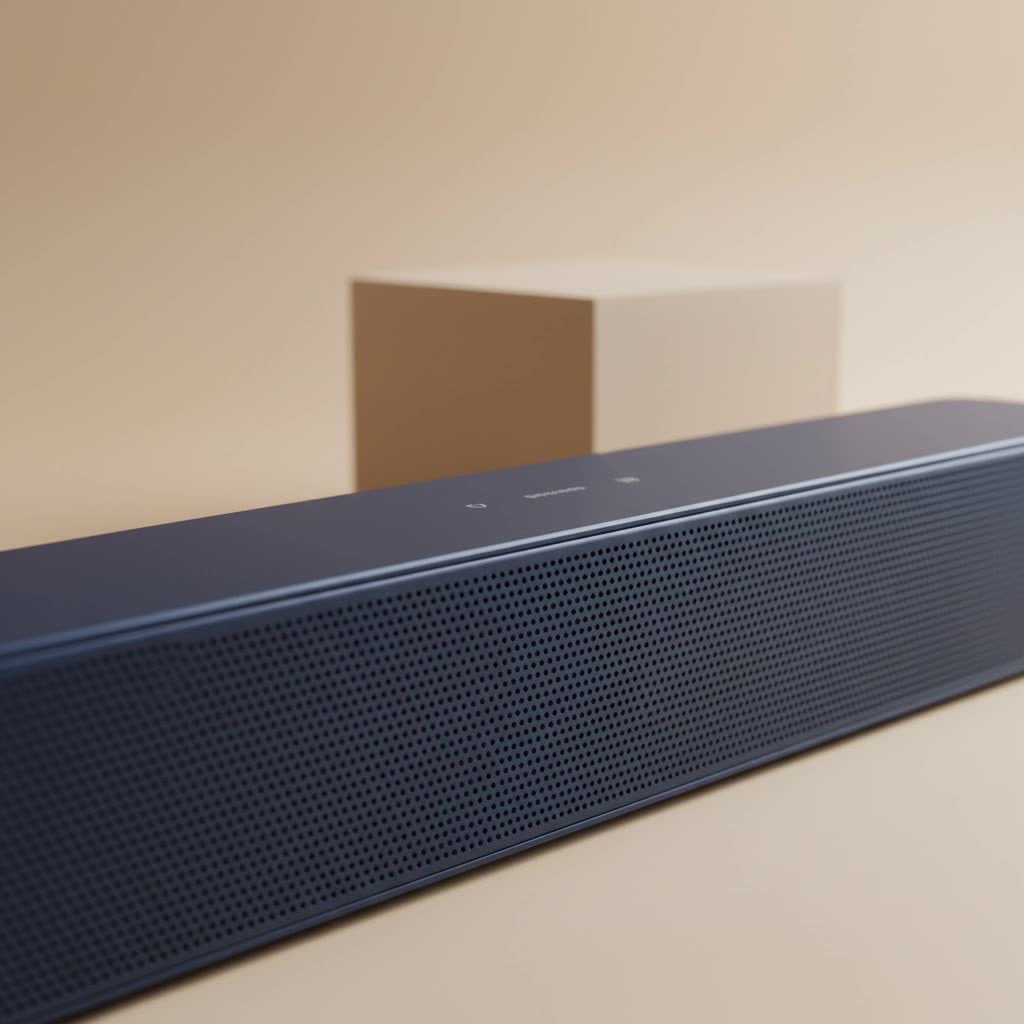
You might think a sound bar is just for a big-screen TV, but a new category of compact, desk-friendly models has emerged specifically for PC users. Unlike their living room counterparts, these sound bars are designed for a near-field listening experience, meaning they sound best when you’re sitting right in front of them.
Here’s what sets a dedicated monitor sound bar apart:
- Compact Form Factor: They are built to be slim and low-profile, often designed to tuck neatly under your monitor screen without obstructing your view. This saves precious desk real estate.
- Simplified Connectivity: PC sound bars prioritize connections that are common for computers, such as USB, 3.5mm aux, and Bluetooth. Some even draw power directly from a USB port, eliminating another bulky power brick.
- Optimized for Your Desk: The audio is engineered to create a clear, direct soundstage for a single user sitting a few feet away. This is different from TV sound bars that aim to fill an entire room with sound.
As our Chief Audio Engineer, Alex Greyson, often says, “The goal of a monitor sound bar isn’t to shake the room; it’s to create a rich, personal audio bubble that immerses you completely in your content, whether it’s a game, a movie, or a work call.”
Sound Bar vs. Desktop Speakers: Which is Right for You?
The classic choice for PC audio has always been a pair of stereo speakers. So, why would you choose a sound bar instead? It comes down to a trade-off between spatial audio and minimalist design.
| Feature | Sound Bar For Monitor | Traditional Desktop Speakers |
|---|---|---|
| Footprint | Minimal, single unit under the monitor | Two separate units, requiring more desk space |
| Aesthetics | Clean, minimalist, and clutter-free | Can look cluttered with more cables |
| Stereo Separation | More limited due to close driver placement | Excellent, wide stereo image is possible |
| Setup | Extremely simple, often one or two cables | Slightly more complex wiring |
| Best For | Users prioritizing a clean setup, productivity, and casual gaming/media | Audio purists, music producers, and gamers who demand a wide soundstage |
A sound bar for your monitor is the ideal choice for those who value a tidy, efficient workspace. It delivers a massive audio upgrade over built-in speakers in a sleek, all-in-one package. If you have limited space or simply hate cable clutter, a sound bar is your best bet.
How to Choose the Perfect Sound Bar for Your Monitor
With a booming market, picking the right model can feel overwhelming. Focus on these four key areas to find the perfect match for your setup.
1. Size and Form Factor
|
Our Picks for the Best Sound Bar in 2026
As an Amazon Associate I earn from qualifying purchases.
|
||
| Num | Product | Action |
|---|---|---|
| 1 | MZEIBO Sound Bar with Subwoofer,120W Soundbar for Smart TV Surround Sound Home Theater System Bluetooth 5.3 Audio Compatible with ARC, AUX, Optical |

|
| 2 | Sound Bar for Smart TV, 80W Soundbar with Bluetooth/ARC/Opt/AUX Connect, Auto Volume Boost, 3 Equalizer Modes, 2 in 1 Detachable Soundbar for TV/PC/Gaming/Projectors |
|
| 3 | Sonos Beam Gen 2 - White - Soundbar with Dolby Atmos |
|
| 4 | Sound Bar for Smart TV, 80W Soundbar with Bluetooth/ARC/Opt/AUX Connect, Dynamic Volume Boost, 3 Equalizer Modes, 2 in 1 Detachable Soundbar for TV/PC/Gaming/Projectors |
|
| 5 | Sony S100F 2.0ch Soundbar with Bass Reflex Speaker, Integrated Tweeter and Bluetooth, (HTS100F), easy setup, compact, home office use with clear sound black |
|
| 6 | Samsung HW-C450 2.1ch Soundbar w/DTS Virtual X, Subwoofer Included, Bass Boost, Adaptive Sound Lite, Game Mode, Bluetooth, Wireless Surround Sound Compatible |
|
| 7 | VIZIO V-Series 2.0 Compact Sound Bar with Dolby Audio, DTS:X, Bluetooth V20x-J8 |
|
| 8 | Sonos Beam Gen 2 - Black - Soundbar with Dolby Atmos |
|
| 9 | Sound Bar for Smart TV, 80W Soundbar with Bluetooth/ARC/Opt/AUX Connect, Auto Volume Boost, 3 Equalizer Modes, 2 in 1 Detachable Soundbar for TV/PC/Gaming/Projectors |
|
| 10 | ULTIMEA 5.1CH Surround Sound Bar with Subwoofer, Dolby Atmos, VoiceMX, BassMX, APP, 300W Soundbar for Smart TV, Home Theater Surround Sound System for TV, BT 5.4, Poseidon M60 (2025 Model) |
|
Before you even look at specs, measure your space. Check the width of your monitor and the clearance you have underneath it. A sound bar should ideally be no wider than your screen for a clean look. Pay close attention to the height; you don’t want it blocking the bottom edge of your display. Look for models specifically marketed as “compact” or “PC sound bars.”
2. Connectivity is King
How will you connect the sound bar to your monitor or PC? This is the most critical technical consideration.
- USB: This is a popular option for PC sound bars. A single USB cable can often handle both power and audio, making it the cleanest setup imaginable. It’s a direct digital connection from your computer.
- HDMI ARC: While less common on monitors, some newer models include an HDMI ARC (Audio Return Channel) port. This is the highest quality connection, allowing you to control the sound bar’s volume with your PC’s controls.
- Optical Audio: A reliable digital connection that provides excellent sound quality. Many motherboards and some monitors have an optical output.
- 3.5mm Aux: The universal analog connector. Nearly every computer and monitor has a headphone jack. While convenient, it’s more susceptible to electronic interference and noise than digital options.
- Bluetooth: Perfect for a wire-free setup and for easily connecting your phone or tablet. However, for gaming, the potential for audio latency (lag) makes a wired connection a safer choice.
Your best option is a model with multiple connection types to ensure compatibility now and in the future.
3. Audio Quality and Features
Don’t get too bogged down in technical jargon. For a desktop setup, a simple 2.0 channel sound bar (left and right speakers) is often more than enough to provide a clear, immersive stereo experience. A 2.1 channel system adds a separate subwoofer for deeper bass, which is great for action movies and games but requires extra space under your desk.
Look for features like dialogue enhancement modes if you watch a lot of content with spoken words, or virtual surround sound if you want a more cinematic feel for gaming.
4. Power Source
How the sound bar gets its power impacts your cable management.
- USB-Powered: Incredibly convenient for reducing clutter. These models are typically less powerful but are perfectly adequate for a desktop environment.
- AC Adapter: These sound bars plug into a wall outlet and can deliver more power for higher volumes and deeper bass. They are a better choice if you want your sound bar to occasionally fill a small room.
Step-by-Step: How to Connect a Sound Bar to a Monitor
Connecting your new sound bar is usually straightforward. Here’s a quick guide based on the most common connection types.
- Check Your Monitor’s Ports: First, look at the back of your monitor. Does it have an audio output port (like a 3.5mm headphone jack or an optical out)? If so, you can connect the sound bar directly to it.
- Connect to the PC (Recommended): The best practice is to connect the sound bar directly to your computer’s motherboard or graphics card. This ensures the highest quality audio signal and avoids any processing issues from the monitor.
- For a USB Connection:
- Plug the USB cable from the sound bar into an available USB port on your PC.
- Your computer should automatically detect it as a new audio device.
- Go to your sound settings (right-click the speaker icon in your taskbar) and select the sound bar as the default output device.
- For a 3.5mm Aux Connection:
- Connect one end of the 3.5mm cable to the sound bar’s AUX input.
- Connect the other end to the green “line out” port on the back of your PC or the headphone jack on your laptop.
- Select “Speakers” or “Headphones” as your audio output in your PC’s sound settings.
- For an HDMI ARC or Optical Connection:
- Connect the respective cable from the sound bar to the corresponding port on your PC or monitor.
- Power on the sound bar and select the correct input source (HDMI or Optical).
- In your PC’s sound settings, select the HDMI or Digital/Optical output as the default device.
Frequently Asked Questions (FAQ)
Can I use any TV sound bar with my monitor?
Yes, you technically can, but it’s often not ideal. TV sound bars are much larger and are tuned to project sound across a room, which can sound overwhelming in a near-field desktop setup. A dedicated sound bar for a monitor is a much better fit.
Do I need a subwoofer with my monitor sound bar?
It depends on your preference. For general productivity, music, and YouTube, a sound bar without a subwoofer is perfectly fine and saves space. If you’re a serious gamer or movie buff who craves deep, rumbling bass, a 2.1 system with a subwoofer is worth considering.
How do I control the volume of the sound bar?
If you connect via USB or HDMI ARC, you can usually control the volume directly from your computer’s operating system. For 3.5mm aux or optical connections, you will likely need to use the sound bar’s own remote control or physical volume knob.
Will a sound bar block my monitor screen?
This is a valid concern. Always check the height of the sound bar (in inches or centimeters) and compare it to the space between your desk and the bottom bezel of your monitor. Look for “low-profile” models if you have limited clearance.
Is a sound bar better than a headset for gaming?
Each has its place. A headset offers superior positional audio for competitive gaming and has a built-in microphone. A sound bar provides a more comfortable, open-air audio experience for casual, single-player games and lets you feel the sound in the room, which can be more immersive.
Your Desktop Audio Deserves an Upgrade
Moving from built-in monitor speakers to a dedicated sound bar is one of the most impactful “quality of life” upgrades you can make for your PC setup. The improvement in clarity, depth, and overall enjoyment is immediate. You’ll hear details in music you’ve missed, feel the impact of in-game explosions, and understand dialogue in movies without having to strain.
By considering the size, connectivity, and features that matter to you, you can find the perfect sound bar for your monitor that elevates your audio and declutters your desk at the same time.
